Installing, step by step
For anyone with a Sophos XGS 136 or XGS 3300 who wants OPNsense on it with every port working, and has never used FreeBSD, OPNsense or GitHub before: from nothing to the first sign-in, in order, with a picture for each step. About an hour, half of it waiting.
Note
Already running OPNsense, and comfortable on a FreeBSD shell? The driver can be installed by hand on a system you have: Installing the driver yourself. This page is the other way, the whole appliance from one USB stick.
What you need
| The appliance | An XGS 136 or an XGS 3300, the two the project runs on (what works on each). |
| A computer | Windows in the pictures. The three programs below exist for macOS and Linux as well. |
| A USB stick | 4 GB or more. Everything on it is erased. |
| A console cable | RJ45 to USB: the appliance's console port is an RJ45 socket. |
| A network cable | To reach the web interface at the end. |
| A GitHub account | Free. The image is built in your own copy of the image builder, by GitHub. |
Everything used here is free: OPNsense, this project, GitHub's build, balenaEtcher and PuTTY.
Warning
Installing erases the appliance's internal disk, and with it the Sophos firmware and its settings. This guide does not go back the other way.
1. Your own copy of the image builder
The image is built by GitHub, in the account that owns the builder, so it is built in a copy of your own. This is done once.
-
Signed in to GitHub, open github.com/AbdelmonemAwad/xgs-image-builder and press Fork, top right.

-
Keep the name and Copy the
mainbranch only, and press Create fork.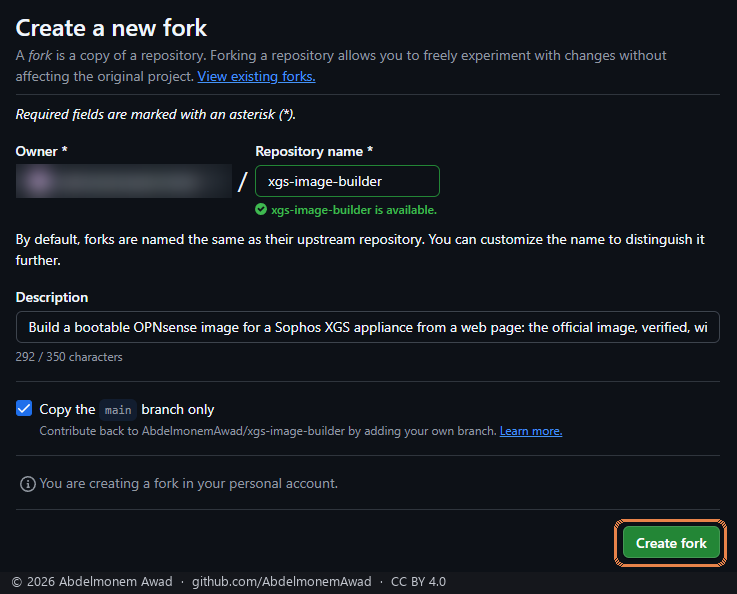
-
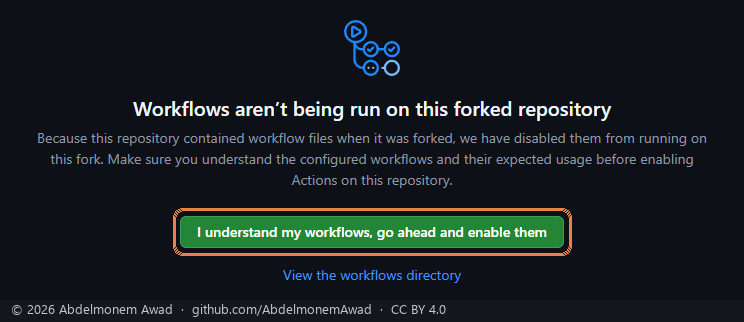
In your copy, open the Actions tab and press I understand my workflows, go ahead and enable them. A copy has its workflows switched off until you say so.
-
Still in your copy: Settings → Pages, branch main, folder /docs, Save. A minute later your copy has its own build page, at
https://<your-account>.github.io/xgs-image-builder/.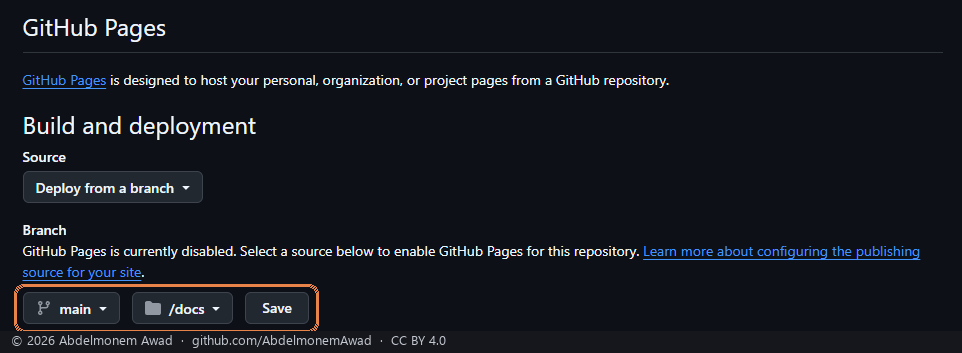
2. Build the image
Open your build page, the address from step 1.4. Its choices are already the right ones for an XGS:
| Choice | What to pick |
|---|---|
| OPNsense release | 26.7 |
| Image type | serial, for an appliance with no screen |
| Serial console speed | 115200, the default. Note the number: PuTTY needs the same one. |
| Where the console goes | Serial port only |
| Driver | latest, the newest release |
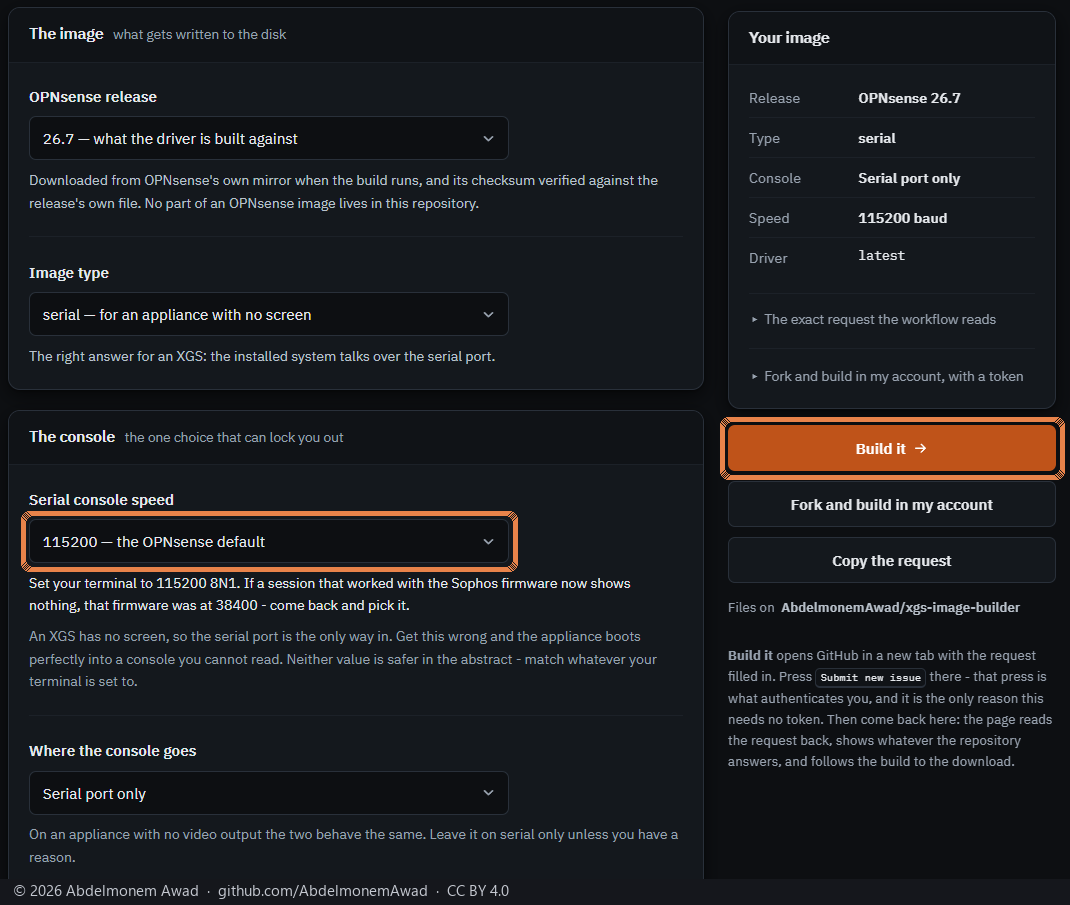
Press Build it. GitHub opens in a new tab with the request already written. Press Submit new issue there, and come back to the page. That press is what tells GitHub it is you; it is why no password or key is needed.
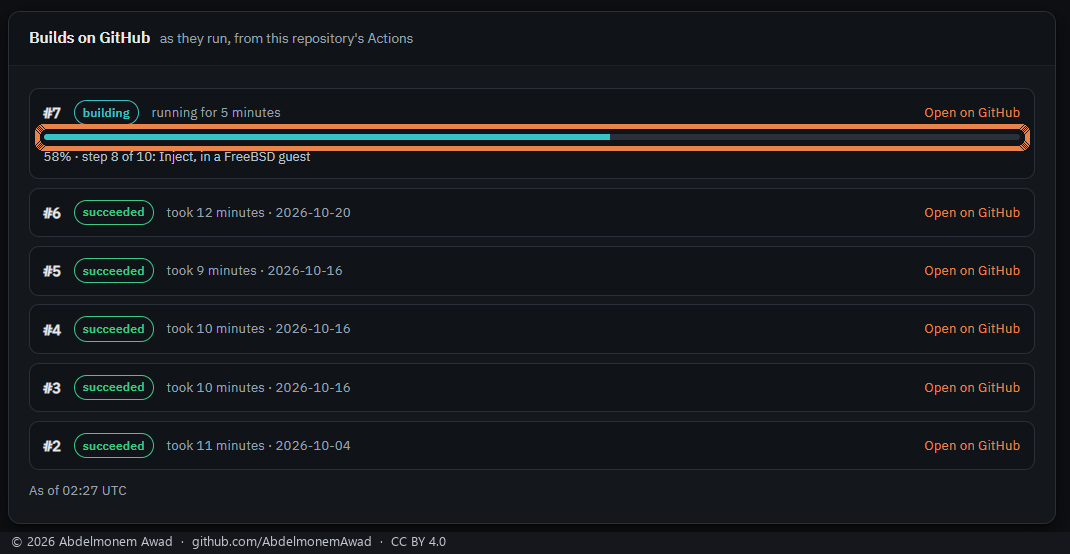
The page follows the build to the end, with a bar that moves with the build's own steps. It takes about ten minutes.
3. Download the image
When the build is done, the page offers the image for download. GitHub hands it over as a .zip,
and you have to be signed in to GitHub to download it.
On Windows: right-click the .zip, then Extract All. Inside is one file,
xgs-opnsense-26.7-serial-115200.img.xz. Leave it as it is. The next program reads the .xz
itself.
4. Write it to the USB stick
Download balenaEtcher from etcher.balena.io and start it.
-
Flash from file, then choose the
.img.xz.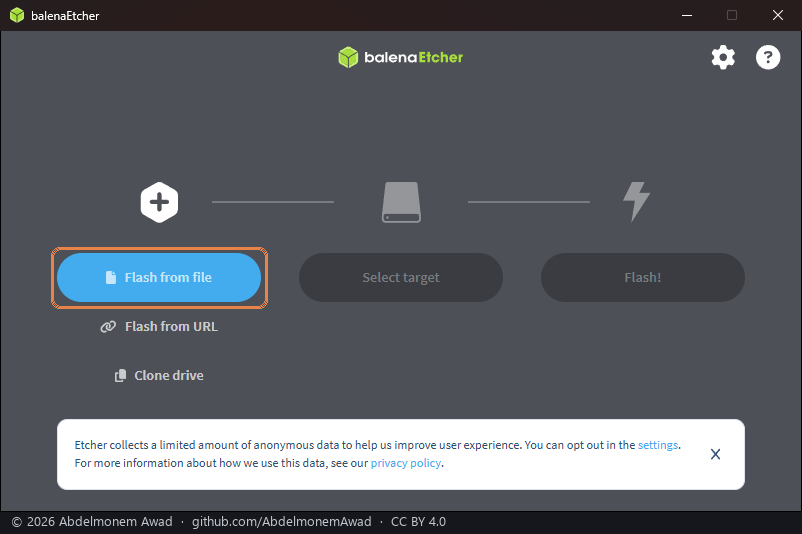
-
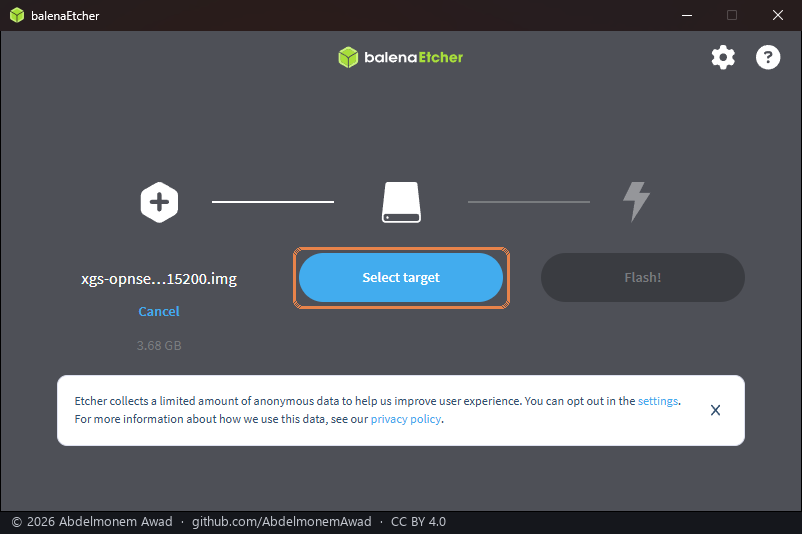
It shows the image by name and by its unpacked size, 3.68 GB. Press Select target and choose your USB stick. Recognise it by its size, and never choose a disk you do not know.
-
Press Flash!. Windows asks to let it change the stick: say yes. Wait for Flash Complete, then take the stick out.
Rufus (rufus.ie) is the other well-known writer on Windows. These pictures were taken with balenaEtcher.
5. Connect the console
The console is how the appliance talks before it has a network.
- Plug the cable's RJ45 end into the appliance's Console port, and its USB end into the computer.
- Find the port Windows gave it: Device Manager → Ports (COM & LPT), a line such as
USB Serial Port (COM3). Some cables need their maker's driver before a port appears. - Download PuTTY from
its author's page (
putty.exe, 64-bit) and start it. -
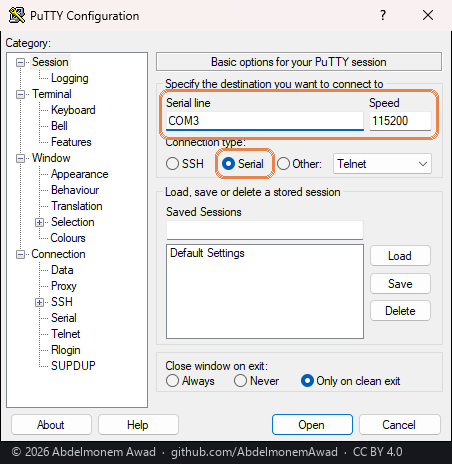
On the Session page: Serial, the port from step 2 as the Serial line, and 115200 as the Speed, the speed chosen in the build.
-
On Connection → Serial: 8 data bits, 1 stop bit, parity None, flow control None. Then Open.
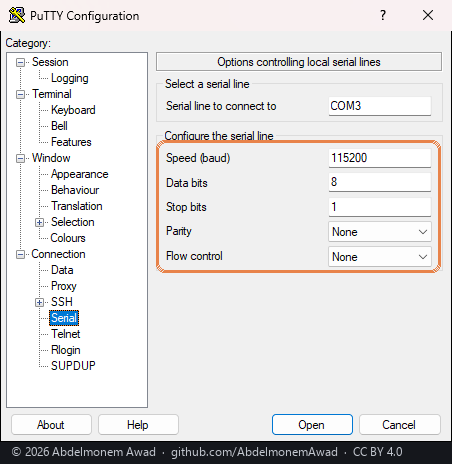
A black window opens. It stays black until the appliance says something.
6. Boot from the stick
Switch the appliance off, put the stick in one of its USB ports, and switch it on. It boots from the stick by itself.
The boot menu appears in PuTTY, counts down, and goes on alone:
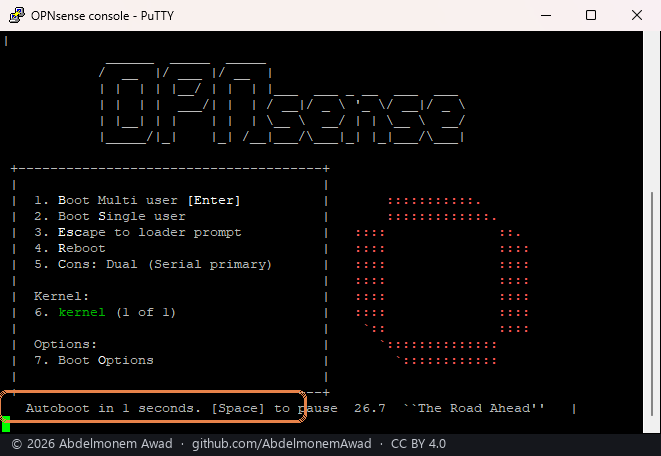
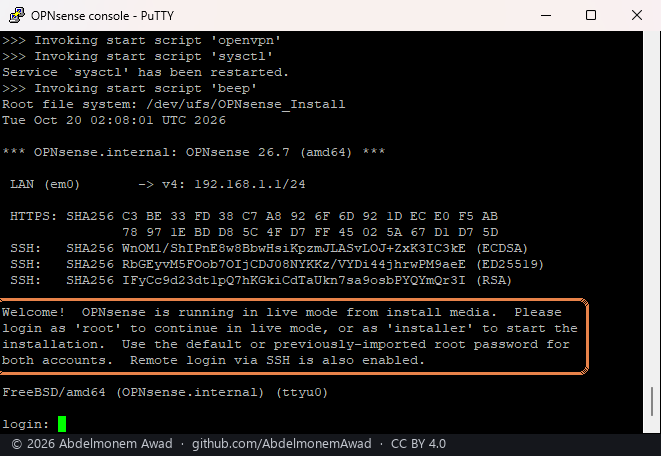
A few minutes later the system running from the stick asks you to sign in. This first boot also puts the driver and the plugins in place.
Tip
PuTTY stays black, or shows unreadable characters? First check the COM port. Then try PuTTY at 38400, the speed of the appliance's own firmware console. If the system speaks there, build the image again with the speed set to 38400.
7. Install to the internal disk
Sign in as installer, password opnsense. Then, with the arrow keys, Space and Enter:
-
Continue with default keymap.
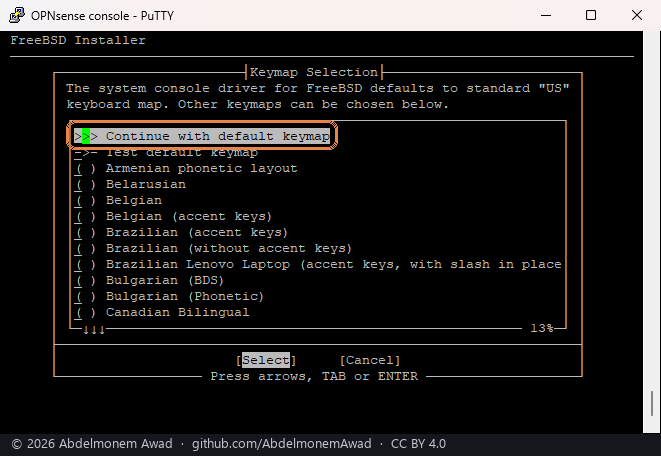
-
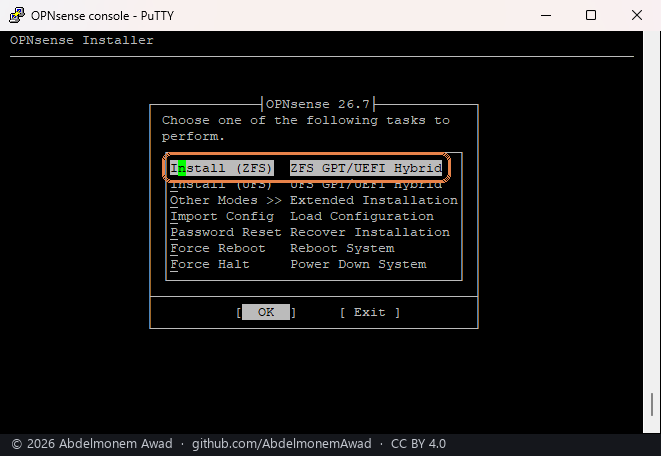
Install (ZFS).
-
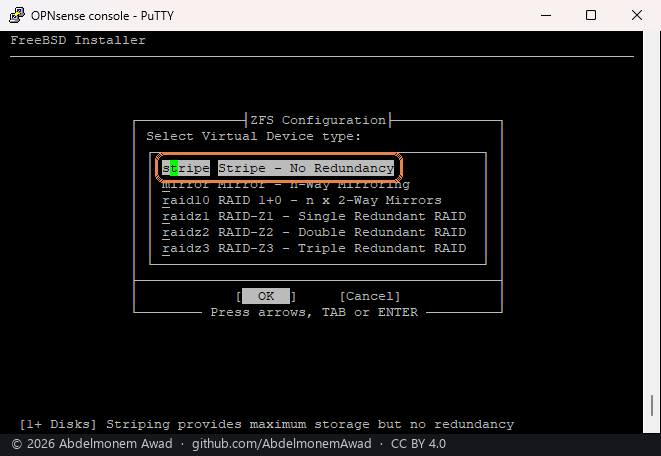
stripe. An XGS has one internal disk.
-
Space to tick ada0, then Enter. The internal disk is
ada0, and the USB stick is not offered.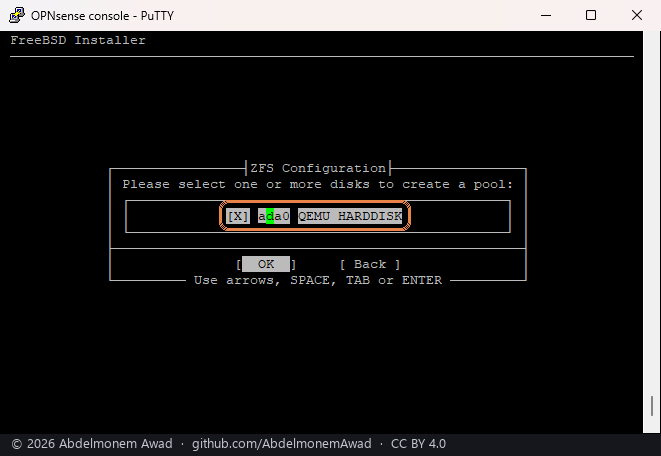
-
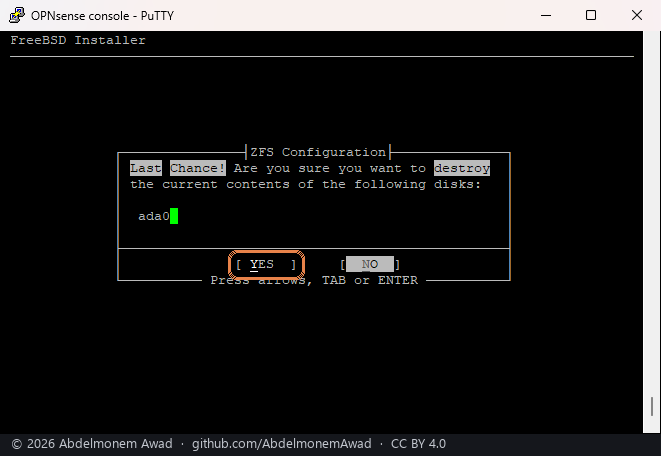
Last Chance! Left arrow to YES, then Enter. This is where the internal disk is erased.
-
Wait for the copy: a few minutes.
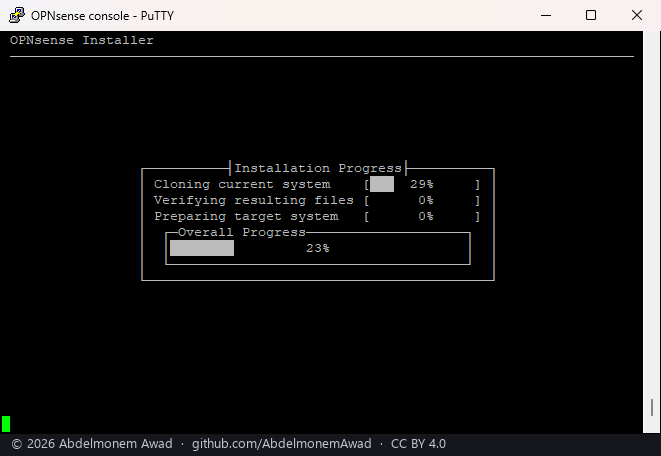
-
Final Configuration: Root Password sets the administrator's password now. Recommended; otherwise it stays
opnsenseuntil step 9. Then Complete Install.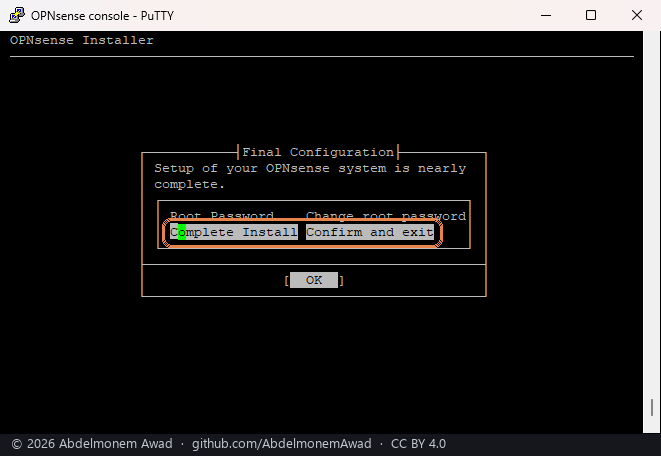
-
Installation Complete: take the USB stick out first, then Reboot now. Left in, the appliance boots from the stick again.
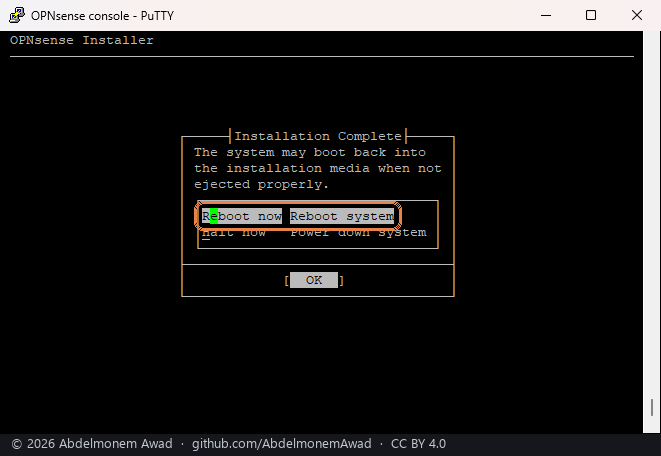
The console pictures in steps 6 to 8 were taken in a virtual machine running the same image: its
disk is a QEMU HARDDISK, and its menus are the ones an appliance shows.
8. The first boot from the disk
On an appliance, the first boot from the disk counts thirty seconds down on the console:
Let it run out. The ports are then assigned by the names printed on the chassis:
| Port | On an XGS 3300 | On an XGS 136 |
|---|---|---|
| WAN, from your internet connection, by DHCP | Port2 | Port1 |
| LAN, one bridge on 192.168.1.1, handing out addresses | every other front port, a module's included | every other front port |
| MGMT, the management port, on 192.168.100.1 | the MGMT port | - |
Pressing a key during the countdown assigns them by hand instead, from the console menu.
Then the sign-in appears on the console. Nothing more has to be done there:
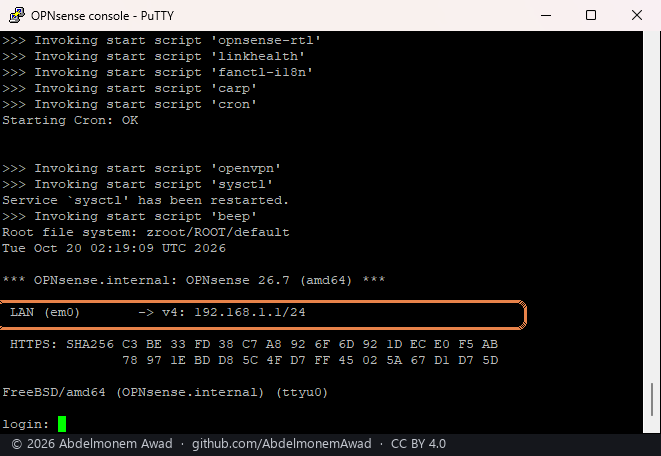
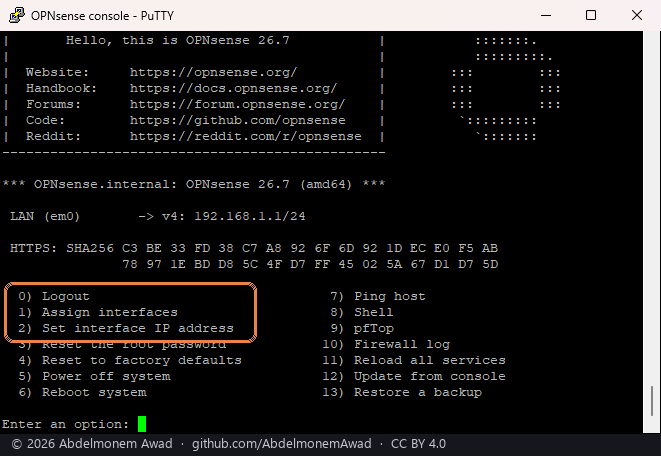
The console menu, after signing in as root, is where to come back to if the web interface cannot
be reached: 1 assigns the ports by hand, 2 sets an address.
9. Sign in to the web interface
- Connect the computer to a LAN port, any front port but WAN, or to MGMT on an XGS 3300. It gets an address by itself.
- Open https://192.168.1.1 in a browser, or https://192.168.100.1 through MGMT.
- The browser warns that the connection is not private. That warning is expected: the appliance made its own certificate. Choose Advanced, then continue to the address.
-
Sign in as
root, withopnsenseor the password set in step 7.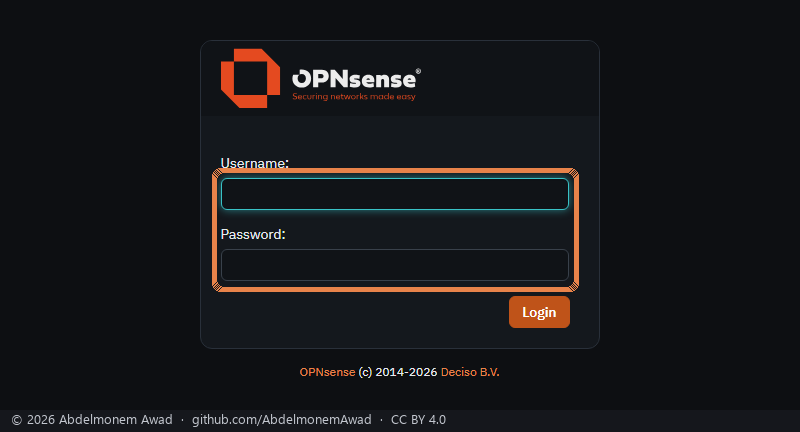
-
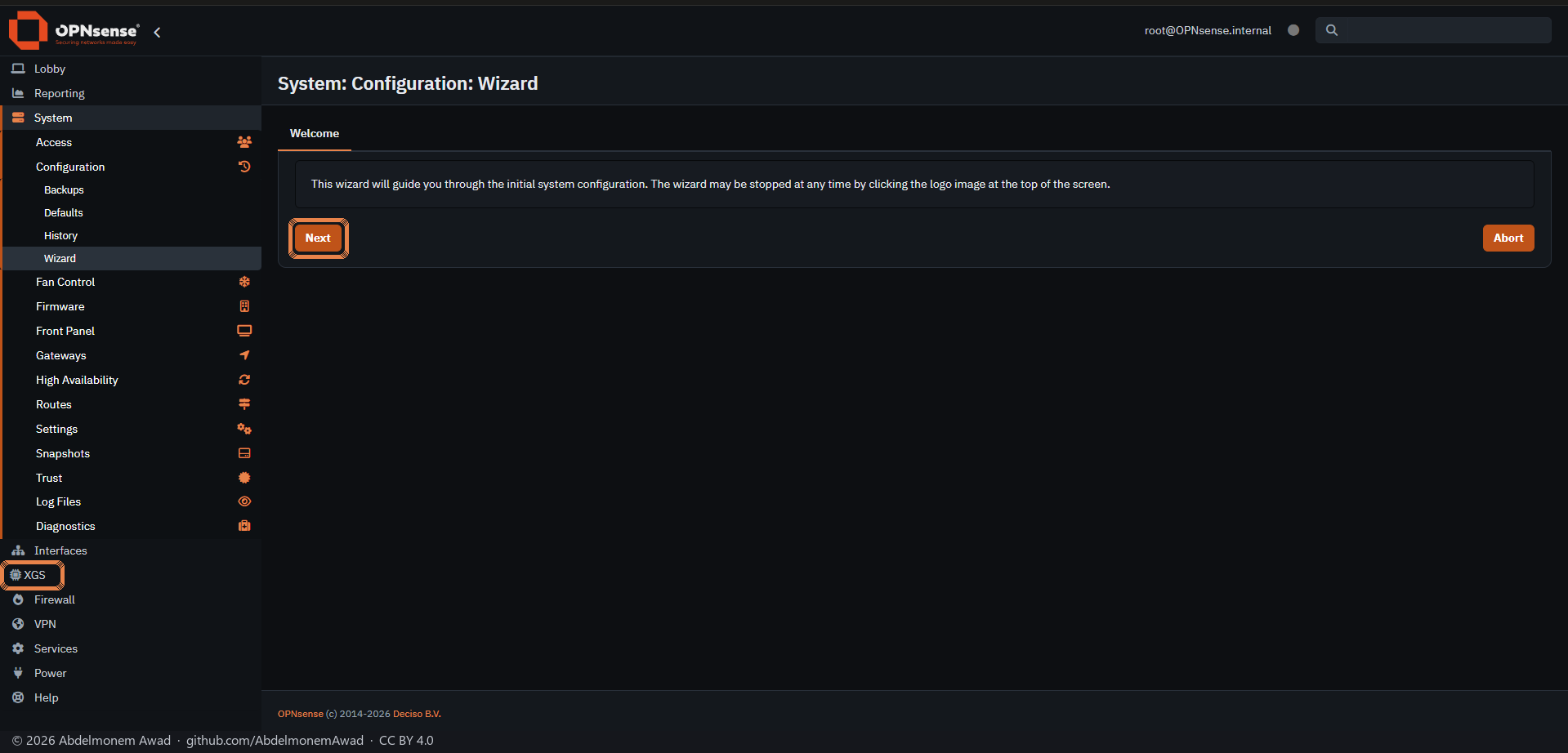
The setup wizard opens: Next through it, for the name, the DNS servers, WAN and LAN and the password. Or click the logo, top left, to leave it. The XGS menu holds this project's pages.
-
If the password is still
opnsense: Lobby → Password, the old one, the new one twice, Save.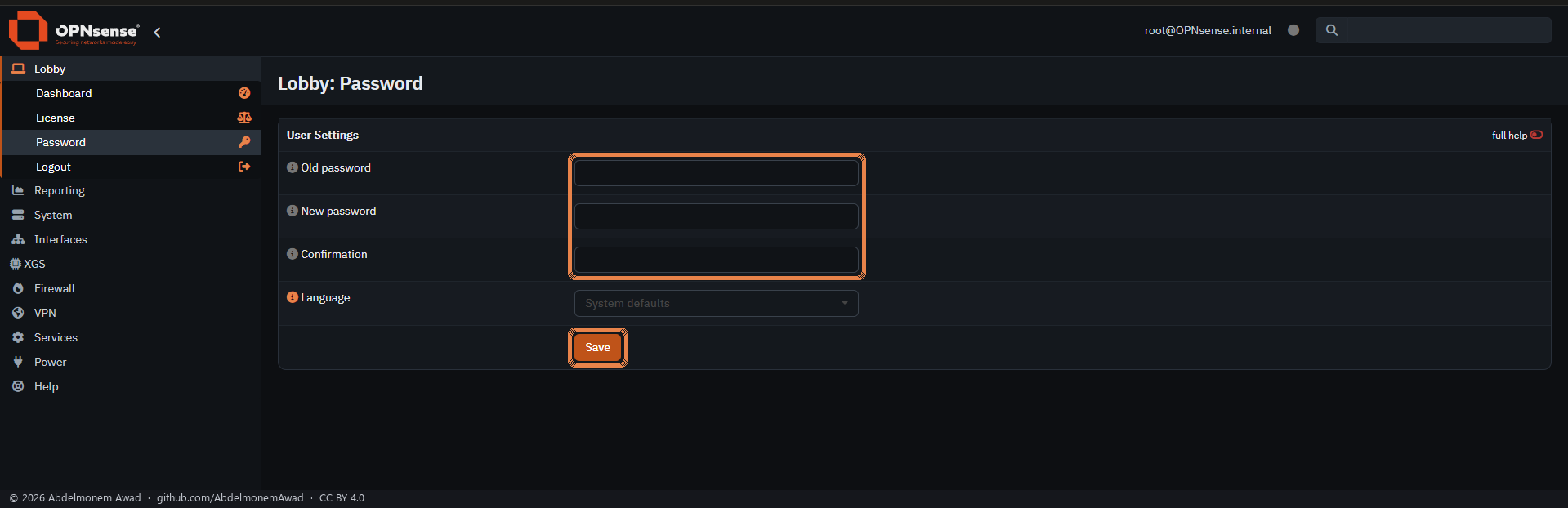
10. Check it, and keep it current
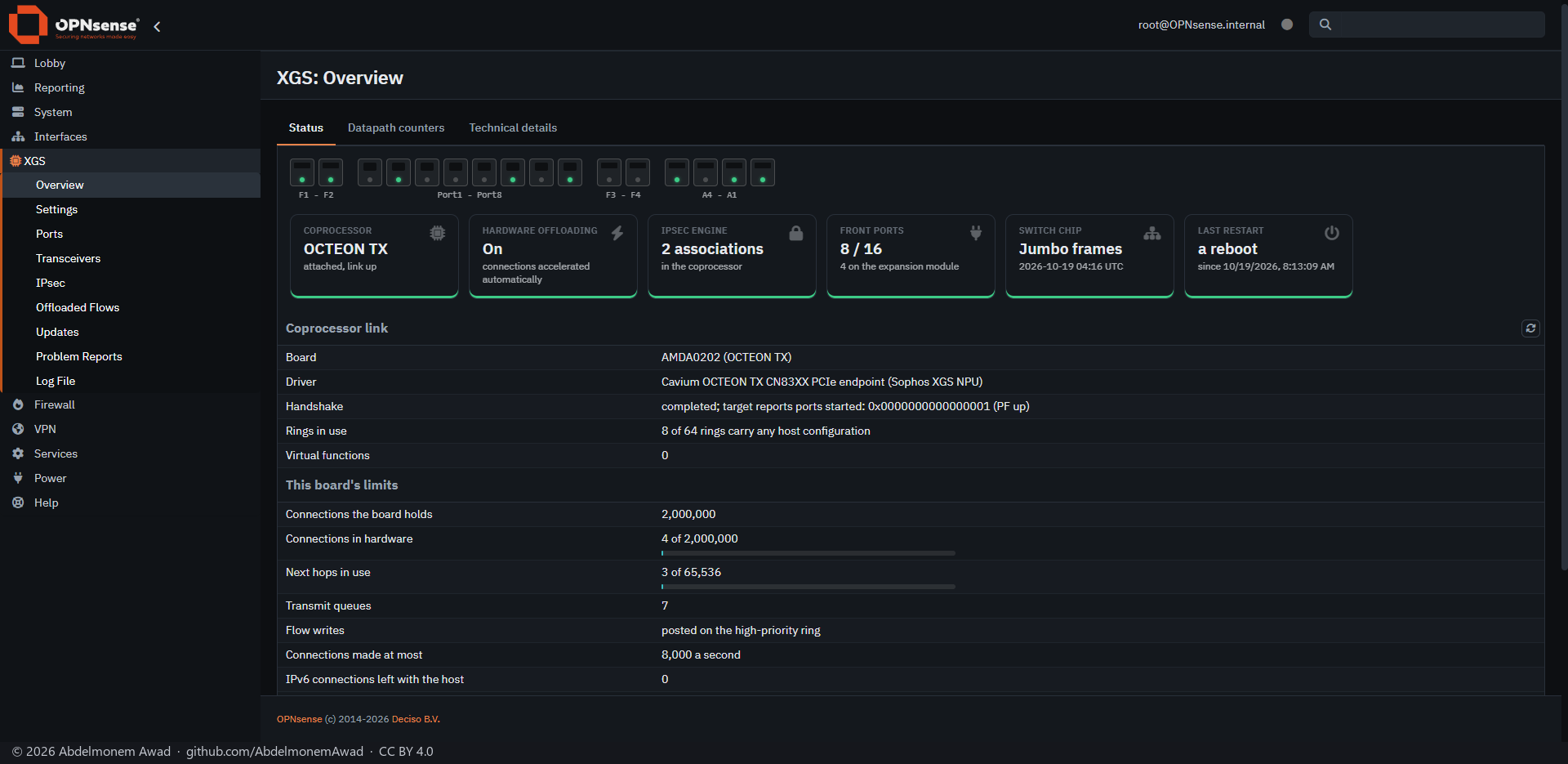
XGS → Overview shows every front port and the coprocessor behind it:
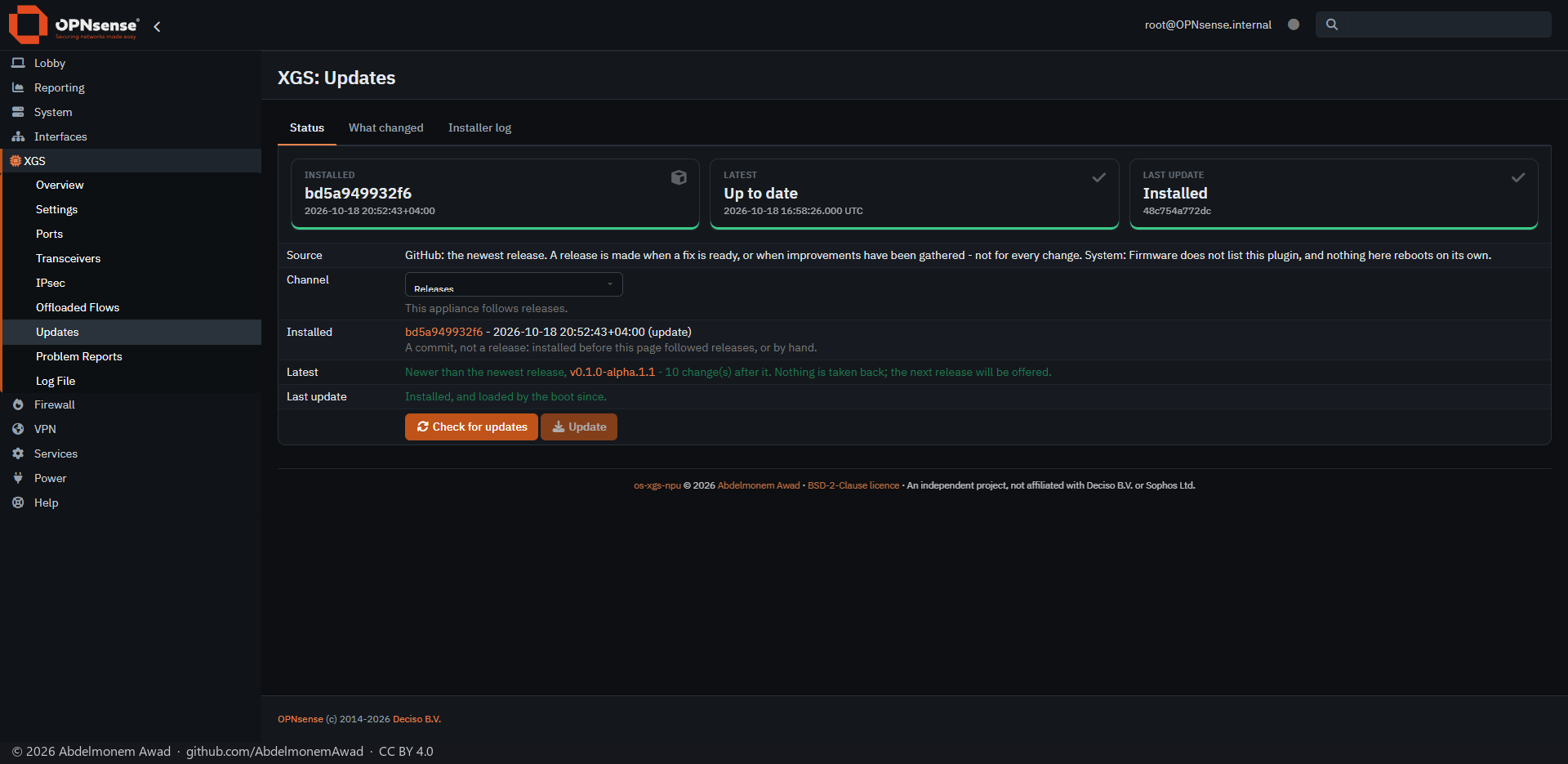
XGS → Updates offers each new release of the driver; the plugins bring themselves up to date once a day. Updating shows an update from start to end.
If something goes wrong
| What you see | What to do |
|---|---|
| PuTTY stays black at power-on | Check the COM port, then try 38400 (the tip in step 6). |
| The appliance starts its Sophos firmware | The stick was not seen at power-on: write it again (step 4), put it in before switching on. |
| The installer comes back after Reboot now | The stick was still in. Switch off, take it out, switch on. |
| No page at https://192.168.1.1 | The cable may be in the WAN port: use another front port. The computer should have an address beginning 192.168.1. If not, use the console menu (step 8). |
| Anything else | A problem report or an issue, or write to the project. |
The discussion of this page is held in the project's GitHub Discussions. Showing it here loads giscus from giscus.app and GitHub, and writing in it needs a GitHub account - what that means.